What Is a Chromebox and Why Might You Want One?
Have you ever wondered if there's a compact, versatile computing solution that fits seamlessly into your office or home? Chromeboxes might just be the technology you're looking for. Nestled in the Chrome OS ecosystem, these small yet mighty devices serve as fantastic alternatives to traditional desktops. But what exactly sets them apart? Let’s take a closer look at the features and benefits of opting for a Chromebox and see why it might be a smart choice.
Exploring Chromebox Features
When it comes to features, Chromeboxes pack quite the punch despite their compact size. You’ll often find a range of processors, from the affordable Intel Celeron to the more robust i5 models, making them adaptable for various needs.
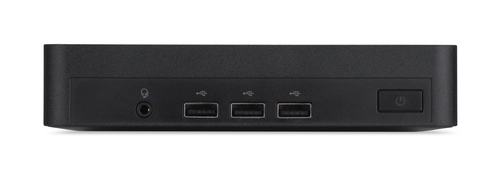
Storage options are typically in the form of SSDs, coupled with ample cloud storage, which Chrome OS integrates seamlessly. Those heavily invested in Google's ecosystem will certainly appreciate this effective integration, allowing for easy access to Google Drive, Docs, and other essential services. Connectivity is a breeze, with USB ports, HDMI for displays, and wired or wireless internet options ensuring you can connect multiple peripherals without a hitch. One of the most appealing aspects, though, is the design. These devices are as easy to set up as they are to tuck away—say goodbye to bulky desktop towers. You simply plug your monitor, keyboard, and mouse in, and you’re all set. This simplicity is what often draws people towards Chromeboxes, alongside the advantage of their cooling efficiency and lower power consumption, which isn’t just good for your workspace—it’s good for the planet too. To delve deeper into devices like these, check out more Chromebox options.The Benefits: Why Choose a Chromebox?
The benefits of owning a Chromebox are pretty compelling, especially when you weigh in factors like cost-effectiveness and simplicity. Unlike traditional desktops, Chromeboxes don't break the bank, offering a budget-friendly entry point without compromising on basic performance.
Maintenance is a breeze, primarily because Chrome OS handles updates automatically in the background, providing you with the latest features and security patches with minimal effort. This hands-off approach means less hassle for you, especially if you're not particularly tech-savvy. Chromeboxes are often a top pick for educational and business environments where cloud-based operations excel. Educational institutions benefit from the integration with Google's Classroom and G Suite, streamlining administrative tasks and enhancing collaborative learning. In business settings, the security of Chrome OS—regularly touted for its robust defenses—coupled with easy feature management, makes it an ideal choice. The straightforward, user-friendly interface of Chrome OS means less time teaching employees how to use their computers, and more time actually working, which in my experience, is a win for productivity. For a detailed look at similar devices, our post on Chromebooks as portable companions might provide more context.Real-life Use Cases for Chromebox
So, where do Chromeboxes really shine? Educational settings are a hotbed for these devices, hugely popular thanks to Google’s education suite. They simplify lesson planning, grading, and even communication between students and teachers, effectively transforming the educational experience.
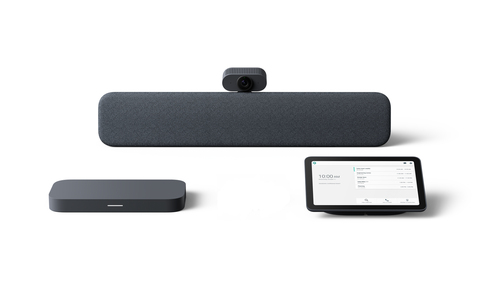
Small businesses aren't left out either, leveraging Google Workspace through Chromeboxes to maintain a seamless workflow. I remember a friend making the switch to a Chromebox for his home office setup, drawn by its simplicity and lower power usage. He found that for everyday tasks like surfing the web, creating documents, and even video calling, a Chromebox provided all he needed—without the bulk of a regular desktop. Chromeboxes also find a niche in digital signage, providing a low-maintenance solution for retail environments that need dynamic, cost-effective displays. Plus, they're increasingly used in conference rooms, offering efficient and quick setups for video calls and presentations. Whether it's a school, a small business, or a digital signage endeavor, Chromeboxes make quite an impact. Visit our category section to explore related devices.Limitations and Considerations
But, let’s be honest, Chromeboxes aren't perfect. While they boast many advantages, some limitations are worth noting. For one, they can’t run certain desktop applications natively, which might be a deal-breaker if your workflow depends on specialized software.
Many professional-grade applications still lack comprehensive web-based alternatives. It’s something to consider if you're in fields requiring heavy-duty software solutions outside of Google's suite. Another consideration is internet connectivity. Since Chromeboxes are primarily cloud-based, they rely heavily on a stable internet connection for optimal performance. If you're in an area with spotty internet, this could pose a significant challenge. It’s not that Chromeboxes become unusable offline, but a large part of their appeal—seamless online integration—relies on good connectivity. On the other hand, users weighing Chromeboxes against traditional PCs must consider their specific needs: budget, desired computing power, and necessary software. It's all about finding the right balance, as Chromeboxes might not tick all the boxes for power users. For those interested in all-in-one solutions, our article on Chromebase models offers some insights.CTL CBXUS190020 vs. Acer Chromebox CXM1-C864G: Which Wins?
Choosing between the CTL CBXUS190020 and Acer Chromebox CXM1-C864G often boils down to your specific needs and budget. CTL’s model, powered by Intel’s i5, is the go-to for those requiring a bit more oomph in their daily tasks. Whether it’s handling multiple tabs or more demanding applications, it doesn’t disappoint.
Meanwhile, Acer’s offering—running on a Celeron processor—is perfect for everyday tasks and tight budgets. It provides solid performance without unnecessary frills, ideal for users who don’t need the extra power. This makes it particularly appealing for educational settings or small businesses aiming to keep costs down while still obtaining a competent device. As you weigh your options, remember the importance of aligning your choice with your daily tech needs.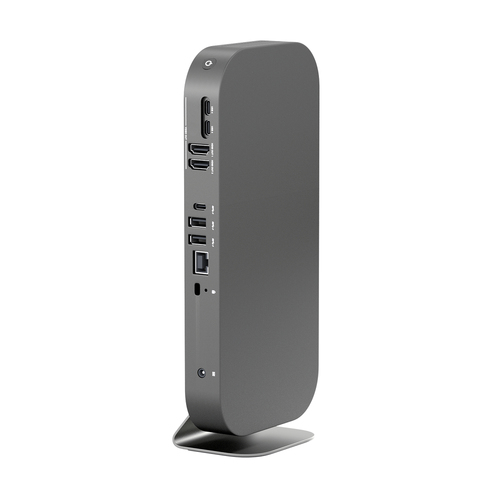
How to Set Up Your New Chromebox
Setting up your new Chromebox is a breeze and can be completed in just a few steps. First, you'll want to unbox your device and connect your peripherals—think monitor, keyboard, and mouse.
Once everything is in place, power on the Chromebox. You'll be greeted with on-screen instructions to connect the device to Wi-Fi, which is crucial for accessing its full suite of capabilities. After connecting, sign in with your Google account—if you don't have one, now's a great time to create it. Then, check for any available Chrome OS updates to ensure the system is as secure and effective as possible. With updates complete, you're all set to enjoy the streamlined and efficient experience Chrome OS offers! It’s as easy as that, and honestly, it's one of the reasons many people opt for a Chromebox over more complicated systems. Check out this resource for additional guidance.Conclusion
As you consider whether a Chromebox fits your lifestyle, reflect on your specific needs—budget, computing power, and software requirements play significant roles in this decision. Chromeboxes stand out for those deeply engaged with the Google ecosystem due to their seamless integration and cloud-centered operations.
If straightforward tasks, such as browsing, document creation, and video conferencing, make up your daily routine, a Chromebox could be a wonderful, cost-effective choice. However, power users might find traditional desktops more fitting for resource-intensive tasks. As you weigh your options, don't hesitate to explore more possibilities on Acer’s official site for broader insights. Interested in exploring more about Chromebox alternatives? Consider reading about Chromebase all-in-one devices. Ultimately, the best choice hinges on aligning your tech choices with your real-world needs and aspirations.Frequently Asked Questions
Common questions about Chromebox